Stock Picking Carrier

Stock Picking Carrier





Manually configuring the carrier for each picking is inefficient, especially when it's already predefined for the partner or their primary partner. This add-on automates this process for companies and allows you to choose whether or not to automate it, based on the type of operation.
Table of contents
Configuration
Configure auto assign carrier for company:
Go to Inventory > Configuration > Settings > Section Shipping
Find "Carrier auto assign" and enable it

Please note that enabling this setting will activate the "Carrier auto assign" option for all types of operations. If you do not wish to use it for a particular type of operation, disable it.
Configure auto assign carrier for picking type:
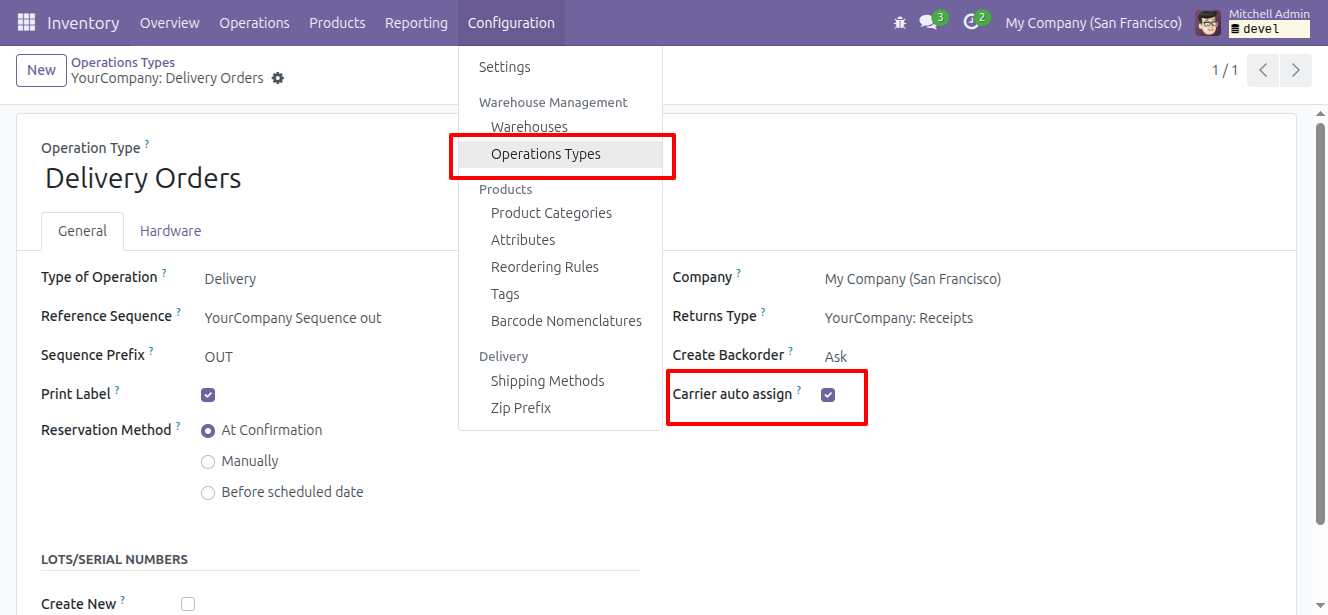
Go to Inventory > Configuration > Operation types
Find "Carrier auto assign" and enable it
Usage
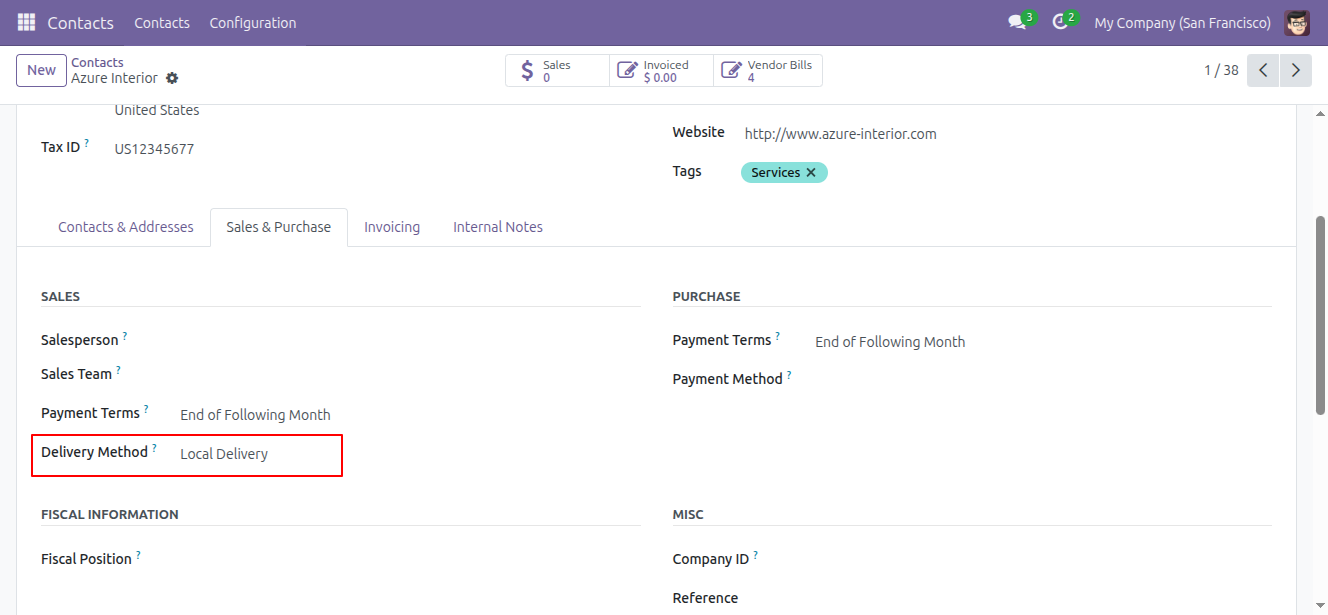
Configure shipping method in the contact
- Go to Contacts or any other menu to access contacts.
- Select the contact you want to configure the shipping method.
- Go to the tab "Sales & Purchases" and select the shipping method.
Set shipping method on the picking
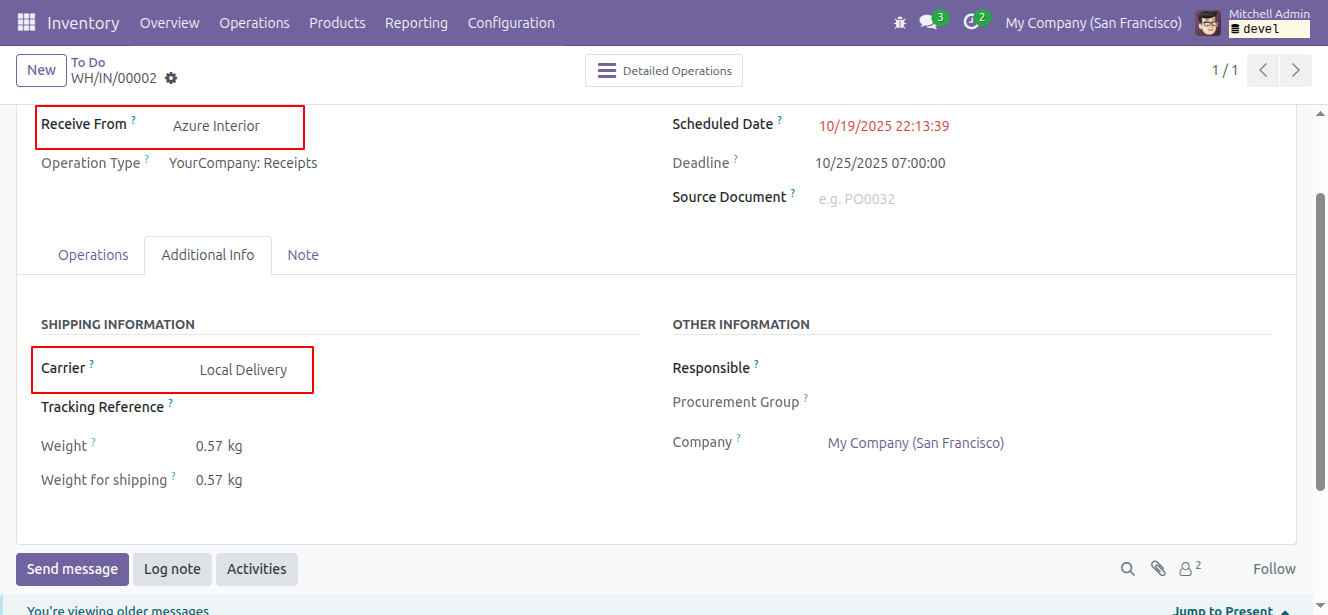
Go to Inventory > Operations > Receipts
Create a new picking
Select the Receive From and the Shipping Method field will automatically be filled in on the Additional Information tab.
Set shipping method when creating a sales order
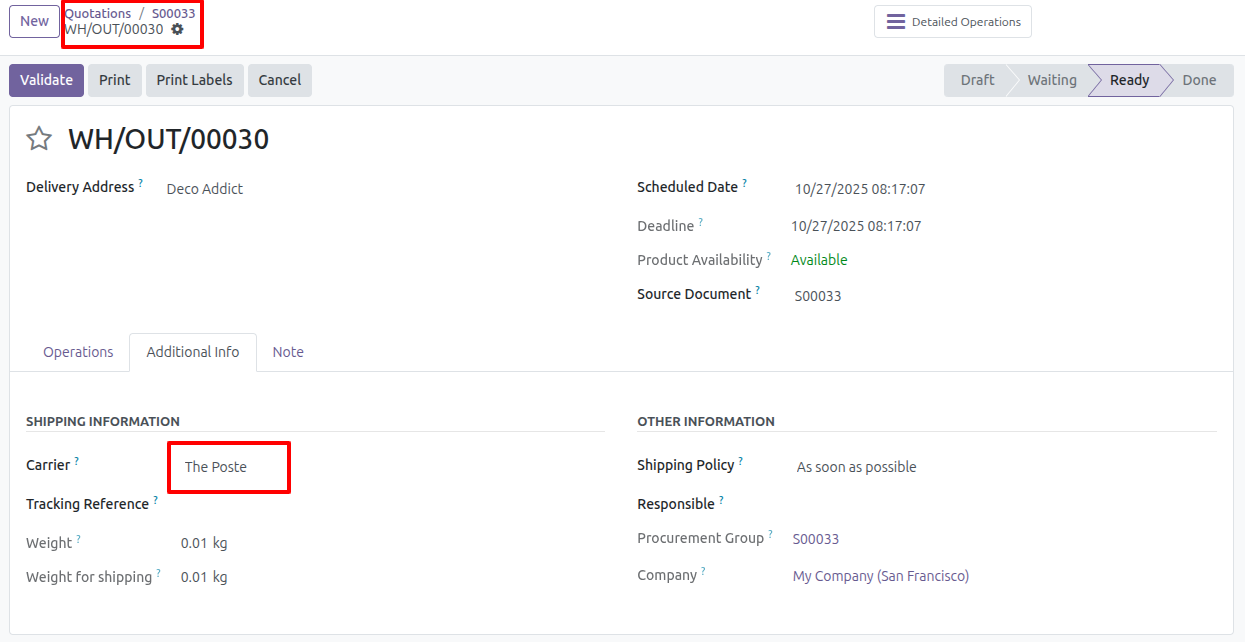
Go to Sales > Orders > Quotations
Create a new sale order
Add the partner, lines, and other necessary data, then confirm the sales order.
A picking will be created with the Carrier configured in the partner selected in the sales order.
Please note that for sections Set shipping method on the picking and Set shipping method when creating a sales order, the order of priority is as follows:
- Delivery method of the primary contact (parent_id).
- Delivery method of the contact.
Bug Tracker
Bugs are tracked on GitHub Issues. In case of trouble, please check there if your issue has already been reported. If you spotted it first, help us to smash it by providing a detailed and welcomed feedback.
Do not contact contributors directly about support or help with technical issues.
Credits
Authors
- Binhex
Maintainers
This module is maintained by the OCA.

OCA, or the Odoo Community Association, is a nonprofit organization whose mission is to support the collaborative development of Odoo features and promote its widespread use.
This module is part of the OCA/stock-logistics-workflow project on GitHub.
You are welcome to contribute. To learn how please visit https://odoo-community.org/page/Contribute.
Once the user has seen at least one product this snippet will be visible.