Online Bank Statements: plaid.com

Online Bank Statements: plaid.com





This module provides online bank statements from Plaid.com, supporting both Sandbox and Production environments.
Table of contents
Configuration
To configure online bank statements provider:
- Go to Invoicing > Configuration > Bank Accounts
- Open bank account to configure and edit it
- Set Bank Feeds to Online
- Select Plaid.com as online bank statements provider in Online Bank Statements (OCA) section
- Save the bank account
- Click on provider and configure provider-specific settings.
or, alternatively:
- Go to Invoicing > Overview
- Open settings of the corresponding journal account
- Switch to Bank Account tab
- Set Bank Feeds to Online
- Select Plaid.com as online bank statements provider in Online Bank Statements (OCA) section
- Save the bank account
- Click on provider and configure provider-specific settings.
Plaid Account & Credentials
To obtain the necessary credentials (Client ID and Secret), follow these steps:
Create a Plaid Account: Go to dashboard.plaid.com/signup and sign up for a developer account.
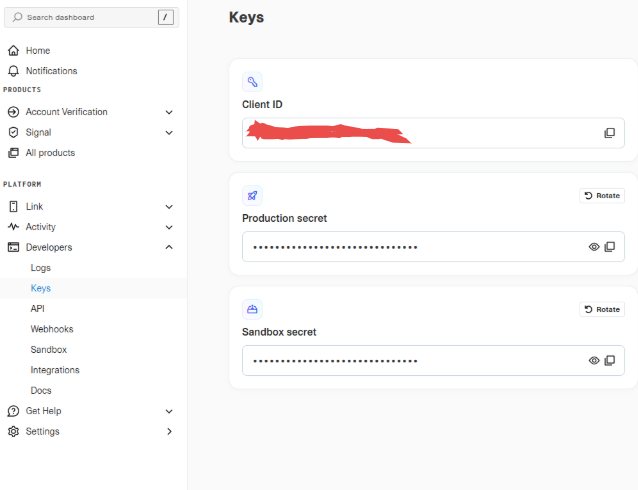
Get Credentials: Once logged in, navigate to Platform > Developers > Keys in the Plaid Dashboard. Here you will find your Client ID and Secret.
Note
There are different secrets for Sandbox (testing) and Production (live) environments. Make sure to copy the secret corresponding to the environment you intend to use.
Important
Account Approval Times:
- For US-based companies, approval typically takes 1-2 business days.
- For companies outside the United States, the approval process may take longer.
Configuration in Odoo
When configuring the provider in Odoo, map the Plaid credentials as follows:
- Username: Enter your Plaid Client ID.
- Password: Enter your Plaid Secret (Sandbox or Production).
- Plaid Environment: Select Sandbox for testing or Production for live data.
Check also account_bank_statement_import_online configuration instructions for more information.
Usage
To pull historical bank statements:
- Go to Invoicing > Configuration > Bank Accounts
- Select specific bank accounts
- Configure username, password and host for plaid
- Launch Actions > Sync with plaid.com
- After launch Actions > Online Bank Statements Pull Wizard
- Configure date interval and click Pull
If historical data is not needed, then just simply wait for the scheduled activity "Pull Online Bank Statements" to be executed for getting new transactions.
Bug Tracker
Bugs are tracked on GitHub Issues. In case of trouble, please check there if your issue has already been reported. If you spotted it first, help us to smash it by providing a detailed and welcomed feedback.
Do not contact contributors directly about support or help with technical issues.
Credits
Authors
- Binhex
Contributors
- Binhex:
- Adasat Torres de León <a.torres@binhex.cloud>
Maintainers
This module is maintained by the OCA.

OCA, or the Odoo Community Association, is a nonprofit organization whose mission is to support the collaborative development of Odoo features and promote its widespread use.
This module is part of the OCA/bank-statement-import project on GitHub.
You are welcome to contribute. To learn how please visit https://odoo-community.org/page/Contribute.
Once the user has seen at least one product this snippet will be visible.